
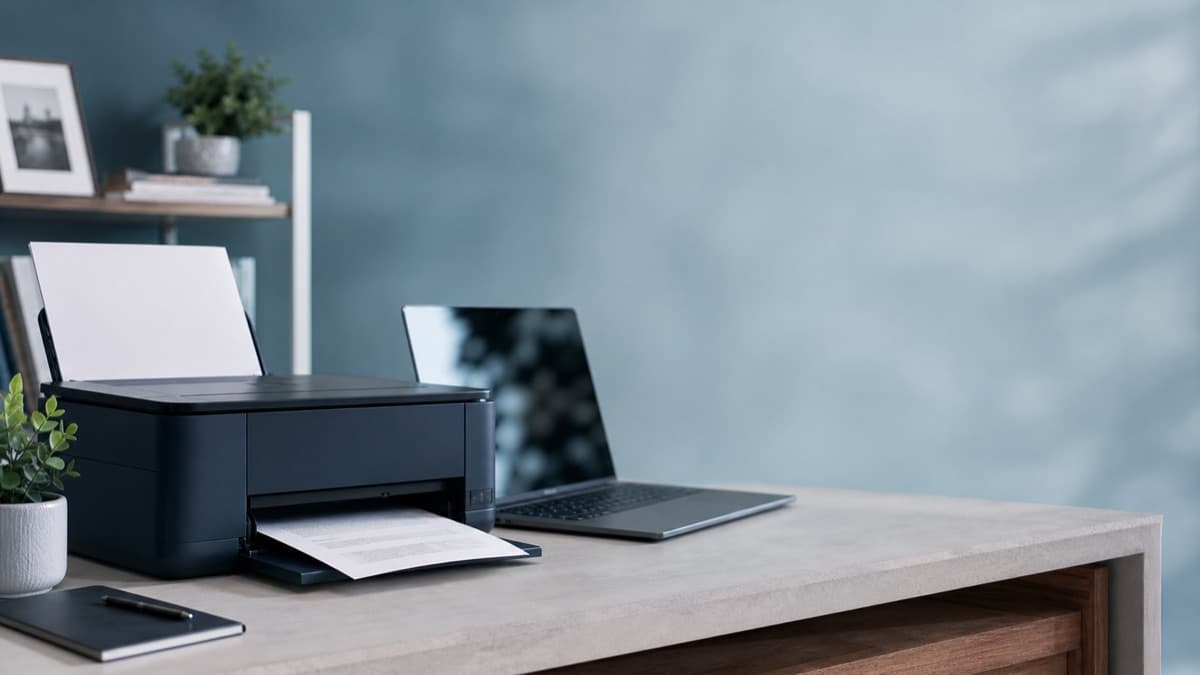
How to Set Up a Printer on Windows 11 (Step by Step)
New printer or new computer? Here's how to set up a printer on Windows 11 in plain language, whether it connects by USB cable or Wi-Fi, plus fixes for when it won't show up.
You just got a new printer, or maybe you moved your old one to a new computer. Either way, you need it working and you don't want to spend an hour figuring it out. Here's how to set up a printer on Windows 11, whether it connects with a USB cable or over Wi-Fi.
The Quick Fix (USB Printers)
If your printer plugs into your computer with a USB cable, setup is simple:
- Turn on your printer and let it finish starting up (wait until the lights stop blinking).
- Plug the USB cable from your printer into any USB port on your computer.
- Wait about 60 to 90 seconds. Windows will detect the printer and install what it needs automatically. You'll see a notification that says "Setting up a device."
- That's it. Try printing something to make sure it works.
Most newer printers work right away with a USB cable. Windows 11 downloads the right software (called a driver) in the background without you needing to do anything.
Setting Up a Wi-Fi Printer
Wireless printers take a couple more steps, but once they're connected you can print from anywhere in your house. No cables needed.
Step 1: Connect Your Printer to Your Wi-Fi Network
Before your computer can find your printer, the printer needs to be on the same Wi-Fi network. This is the step most people skip, and it's usually why wireless printer setup doesn't work.
How you do this depends on your printer model, but most printers have one of these options:
- Touchscreen display: Look for a Settings or Network menu on your printer's screen. Select Wi-Fi Setup, find your home network name, and type in your Wi-Fi password.
- WPS button: If your router has a WPS button (a small button, often on the back), press it, then press the Wi-Fi or WPS button on your printer within two minutes. They'll connect automatically.
- Printer app: Some brands (HP, Canon, Epson, Brother) have a phone app that walks you through connecting the printer to Wi-Fi. Download the app for your printer brand and follow the steps.
Step 2: Add the Printer on Your Computer
Once your printer is on Wi-Fi, tell your computer to look for it:
- Click the Start button (the Windows icon in the bottom left corner of your screen).
- Click Settings (the gear icon).
- On the left side, click Bluetooth & devices.
- Click Printers & scanners.
- Click the Add device button at the top.
- Wait while Windows scans your network. When your printer shows up, click Add device next to its name.
If your printer doesn't show up after a minute or two, see the troubleshooting section below.
Step 3: Print a Test Page
Make sure everything is working:
- Go back to Settings, then Bluetooth & devices, then Printers & scanners.
- Click on your printer's name in the list.
- Click Print a test page.
If a page comes out, you're all set.
Setting Your Default Printer
If you have more than one printer (or if your computer keeps trying to send things to the wrong one), you can pick which printer Windows uses automatically:
- Open Settings, then Bluetooth & devices, then Printers & scanners.
- Turn off the switch that says "Let Windows manage my default printer."
- Click on the printer you want to use most often.
- Click Set as default.
Now when you hit print, it'll go to the right place.
Troubleshooting: "My Printer Won't Show Up"
If Windows can't find your printer during setup, try these fixes in order:
1. Check Your Wi-Fi Connection
Your printer and your computer must be on the same Wi-Fi network. This sounds obvious, but it's the most common reason wireless printers don't connect. If you have two networks (like "HomeWiFi" and "HomeWiFi_5G"), make sure both devices are on the same one.
2. Restart Everything
Turn off your printer. Unplug it from the wall. Wait 30 seconds. Plug it back in and turn it on. While you're at it, restart your computer too. Then try adding the printer again.
3. Run the Windows Troubleshooter
Windows has a built-in tool that can find and fix common printer problems:
- Open Settings.
- Click System on the left.
- Click Troubleshoot.
- Click Other troubleshooters.
- Find Printer and click Run.
The troubleshooter will scan for problems and try to fix them automatically.
4. Get the Driver or App From the Manufacturer
If Windows doesn't find what it needs on its own (this is more likely with older printers), get the software straight from the maker. Go to the printer manufacturer's website (HP, Canon, Epson, Brother, or whatever brand you have), search for your exact printer model, and download the software for Windows 11. Some newer printers use a free helper app from the manufacturer instead of a traditional driver. Either way, run what you download and follow the steps.
5. Check If Your Printer Shows as "Offline"
If your printer is listed in settings but says "Offline":
- Click on the printer name in Settings, then Bluetooth & devices, then Printers & scanners.
- Click Open print queue.
- Click the Printer menu at the top.
- Make sure "Use Printer Offline" is not checked. If it is, click it to uncheck it.
"My Printer Is Set Up but Nothing Prints"
If the printer is connected but jobs aren't coming out, the print queue might be stuck:
- Open Settings, then Bluetooth & devices, then Printers & scanners.
- Click your printer's name.
- Click Open print queue.
- If there are old print jobs listed, click the three dots next to each one and select Cancel. Or select Cancel All Documents from the Printer menu.
- Try printing again.
If that doesn't work, restarting the Print Spooler (the service that manages print jobs) usually fixes it:
- Press the Windows key and R at the same time. A small box opens.
- Type
services.mscand press Enter. - Scroll down the list until you find Print Spooler.
- Right-click it and select Restart.
- Close the window and try printing again.
A Note About Printer Apps
Many printer manufacturers want you to install their own app (HP Smart, Canon PRINT, Epson Connect, etc.). These apps are optional for basic printing, but they can be helpful for scanning, checking ink levels, and setting up wireless printing on phones and tablets. If you want to keep things simple, you don't need them. Windows handles printing on its own.
Still Stuck?
Printers are one of the most frustrating things in tech. If you've tried everything here and it's still not working, ForgeWay can help. It asks about your specific printer model and your setup, then walks you through fixes tailored to your situation.
Need help with a different tech problem? ForgeWay walks you through it step by step. Try it free at forgeway.app.
ForgeWay offers guided troubleshooting, not professional IT services. For physical hardware repair, contact a qualified technician.